Friday, April 11, 2014

How to use Apps for Speaking

As the rapid technology evolution moves on, we are offered with so many electronic devices which we can ease our day to day life challenges.

Most of the people use smart phones at the present day. But, few reap the fullest benefits from them. For either a professional or a apprentice speaker, there's a lot to know about it. Mobile 'apps' developers has continued to create new software tools for speakers' usage on their pocket computers.
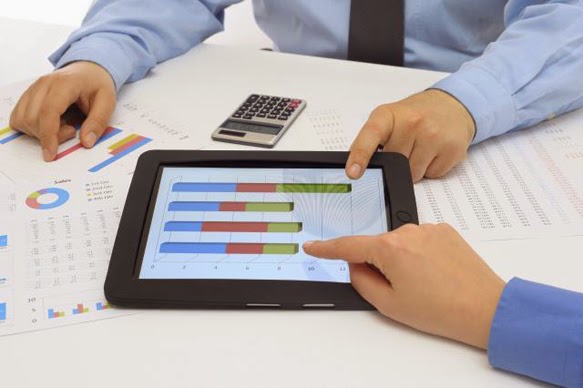


Here goes some of the best apps for a variety of speaking and scenarios.


  • Quickoffice


    This app is useful when you need to create, edit, or review PowerPoint presentations from an Android smart phone. It offers you with great opportunities to format your presentations.

    After you are done with the presentation, you can also place your presentation in an online-file-sharing site like, Google-Drive for access from any computer.

  • SlideShark


    This is developed by the company Brainshark, and is essential for iPad or iPhone using speakers. This comes in handy when you need to show your presentation to your next-desk-mate or for an audience even. You just need to connect you smartphone to a projector and there you go!

  • Quotebook


    It's obvious that you can't write down all the quotes you find that's useful. Even if you do that, when you are to retrieve the exact quote from hundreds, then you'll understand, how stupid it seems.

    So, for that 'Quotebook' comes in handy. Rather than providing stock quotes, this app offers a way to collect your own quotes and organize them by author, source, category, and more. Even this app should be bought, Trust me, it is worth it.

  • Evernote


    The best ever app you'll need forever. Evernote makes it easier to save in one place anything you might use for an upcoming speech; data, quotes, images, charts, and more. For more information visit: Evernote


  • Presentation clock


    This app helps you keep the time with large, easy-to-read numbers that make good use of screen sizes on mobile devices. You can also change the color of numbers in different intervals, and set vibration alerts even.
  • Breathing Zone


    Breathing Zone, employs your phone microphone to assess your breathing and then the app guides you to breath in and out along with easy-to-follow voice instructions. It's a doctor recommended, guided breathing exercise that will help you relax prior to stressful events or as a regular routine.

  • Presenter Remote Control

    With this app, you can view and control your PowerPoint Presentations from an Android smartphone. This connects your smartphone to the projector via bluetooth technology.

  • PhatPad


    If you are in a group discussion, there's no need of a white screen and a projector. You can use your iPad itself to express your ideas more efficaciously. With this app, you can draw, wirte or type ideas on the screen using PhatPad's digital ink technology and handwriting recognition tools, which automatically convert notes scribbled on screen into digital text.

Thursday, March 27, 2014

How to get use of Visual Aids in a Presentation

Talking about visual aids in a presentation, the first and last thing what comes on to your mind is, 'PowerPoint Slides' I believe. Many are comfortable with PowerPoint as they are with an old pair of slippers. But, if you peek to the happening Presentation-software market, your jaw will probably drop down. And if you're not keeping pace, you can miss out on so many opportunities to take your visual aids to the next level.


Let's see what's going on inside the Presentation-software market


  •  Power Point - More than a Slide Design Tool


    When PowerPoint is used today, it's more often employed for purposes beyond its original slide design function. Jumping to advances in
    PowerPoint's latest versions, 2010 and 2013, more now use the software as a full 'Creative Suite' for tasks like editing video, enhancing photographs, as well as for creating printed documents.


    • As a Video Editor
      You can always use
      PowerPoint for smaller, less complex video-editing projects. You can also create your own videos or convert existing PowerPoint Presentations to video format for uploading for Sites like YouTube.
    • As a Graphics Editor
      You can use
      PowerPoint to edit or enhance photographs used in presentations, as well as to modify images like vector graphics. You can crop photos, change colors, use different backgrounds and more with PowerPoint's tools.

    • To create Printed Documents
      You can use
      PowerPoint's 'Custom Layouts' feature to create pitch books as well as white papers, project proposals and other text-heavy documents, often saving them as PDFs.


  • Keynote - Your Presentations, Totally decked out


    There are exceptions for everything. If a presentation will be used internally, I would recommend you the old standby PowerPoint. But if the presentation will be delivered more selectively with video or complex graphics, I might opt for Apple's Keynote Design Software.

    Keynote is effective for its ability to hold high-resolution video and create transitions and for its text editing capability.


  • Haiku Deck - Presentation Software that inspires


    This free iPad app is well-suited for simple presentations but also provides access to a large collection of images on Flickr. You can add amazing images, create charts and even share them via social networks. But it's not designed for more robust presentations that require animations.

  • Online Resources
    • NoteandPoint.com
      This site is designed to provide designers inspiration in the creative use of layouts, graphics, photographs, fonts

    • Shutterstock.com
      You can choose from millions of stock photographs, illustrations and videos on this site

    • Visual.ly
      This site showcases some of the world's best info-graphics, visuals that convert complex data into appealing graphs
       
    • Indezine.com
      This site includes thousands of free PowerPoint templates, simple PowerPoint slides, PowerPoint tutorials and more


Saturday, February 15, 2014

How to clean a Touchscreen Correctly

This is named as a secondary issue for many computer, tablet and smart phone users. The curse of the greasy, oily, smudged and fingerprint covered screen is something that most touchscreen users are aware of.


So do you know HOW exactly to clean your touchscreen?
  •  Get a Micro fiber cloth or an optical cloth


    This material is specially designed to drive the grease, make-up, fingerprints and whatnot off your touchscreen without making any scratches.

    Some devices will be with a micro fiber/ optical cloth by default. Unless, you can take the cloth you use to clean your eye glasses. OR, you can buy one from an optical store or from your phone outlet itself.
     
  • Turn off you device before starting to clean


    It is better to switch off your device. So that, it will be easy for you to spot where to clean. And, if your device is switched on, chances are you will accidentally tap icons displayed on the screen. So, why take risks?

  • Brush your phone in small circles


    Using a circular motion, buff the dirt, grime, or bacteria off the screen. The cloth will get rid of everything.

    For tougher jobs, go on with this basis
    :

    1. Say you have dropped jam or butter from your sandwich, or some other dirt.
    2. Take a little bit of warm water, and a tiny drop of dish soap (like the size of an ant).
    3. Dip a tiny little corner of your optical cloth and buff out the area with jam or other dirt and use the dry part of the cloth to just wipe it off and buff it dry. (exactly, using a circular motion)

      WARNINGS!
    • Anytime you buy an eyeglass cleaning kit, a phone cleaning kit, it's containing one of these:
      1. Soap and water OR
      2. Rubbing alcohol and water
      Save your money. Because, you can make them at home.
    •   To clean your micro fiber cloth; soak it in warm water with dish soap. Scrub the material lightly while soaking it (not too hard, so you'll end up with a messy cloth). After soaking, avoid squeezing out any excess water, let the cloth out to air dry or blow dry.

Wednesday, February 12, 2014

How to create an eBay account

eBay is the World's Online Marketplace®, a place enabled for buyers and sellers to get together and trade almost anything. It is an online auction and shopping website enabled for people and businesses to buy and sell, goods and services worldwide. 

If you are into online shopping or online trading, probably the best way is, eBay!

Here are the steps to create an eBay account > 


  • Go to eBay website

Enter the URL (https://www.ebay.com) in your address bar
OR
Simply click on the image above to directly divert to eBay website.
  • Click on *Register*

  • Enter your account details

    Then you'll be moved to another page which will inquire your account details. Make sure you give out accurate information. Since this is Business!


    First, you have to enter your First and Last name respectively.


      2.  

    Then, correctly type your email address in the appropriate text-box
    After that, choose a strong password in the next separate box.

    If you require any assistance regarding, a Strong Password, visit How to choose a Strong Password.
    Since this is the most essential data through out your account details, make it unique. So others won't be able to crack it.

    And then, carefully re-write your password in the "Confirm Password" box.

  • Click on *Submit*


    Before Clicking on Submit, read those 3 points.
    Only if you agree to
    User Agreement and Privacy Policy, tap on "Submit"

  • Congratulations! You are now on eBay!


    Your account is now activated and you can start using eBay
    . You will receive an email from eBay, with the "Welcome" message shortly.


Tuesday, February 11, 2014

How to create a Strong Password


The weakest link in any security for your online accounts is, the password. If another person lucked out and guess or retrieve your password somehow, they trespass almost every security measure the website has because the website will see them as you!


So it is obvious to create a stronger passwords which are hard to guess or crack. If you feel your password is not secure enough, I hardly recommend you to change it, now or never!

Now, there's a FAQ to be taken place.

HOW?

And that is exactly why you're here. ;)

  • Avoid Traditional Passwords

 As per the technology evolution, password cracking techniques have being matured quickly. Thus, switching a strong password is very outdated and impractical.

Don't use passwords based on your personal data (That is warning no.1) 
Your name, nick name, wife's name, pet's name, hometown...etc. In fact, those are not passwords at all. Those data are known by any person around you. It's as if you want them to log on to your online accounts. 

And Never use a password based on your username, account name, computer name or email address.


  • Use a Password Manager   
 There are plenty of ways to generate a strong password and using a password manager is  the best way yet. Password manager is a software application on your PC or mobile device that creates you stronger passwords and even stores them in a secured database. 

Some popular ones are:
  1. 1Password (closed-source, commercial)
  2. LastPass (closed-source, free/commercial)
  3. Dashlane (closed-source, free/commercial)
  4. KeePass (open source, free)
  5. RoboForm (closed-source, commercial)

    You'll have to install it first to get use of it. If you want any further help, feel free to ask me.
  • Try Using Keyboard Patterns

Using Keyboard patterns, it will be easy for you to generate uncommon and strong enough passwords. Unauthorized users won't be able to crack it that easy, unless you told them.

  • Create a Passphrase instead of a Password 


    Passphrase is a collection of random words, instead of a single word. But, make sure you remember it.
    Even though they are not much stronger, they're much more secure that traditional passwords.


    WARNINGS!

    1. Keep it secret, Keep it safe.
    2. Never use the same password twice.
    3. Don't ever save your password in a web browser.
    4. Don't write down your password. Instead, try to remember it.
    5. Don't change your passwords unless you suspect some hacking.
                    

About Us

Yes.And.How. is an approach to create a world where anyone can easily learn how to do anything. It's your one-stop online blog resource for day to day life challenges. Yes.And.How. will empower you to learn exactly, how to do anything—and it’s available to you anytime, anywhere.

Like Us

© Yes. And. How. All rights reserved | Theme Designed by Seo Blogger Templates